Getting Started
1. Signing in
Open the neomia Lens dashboard URL provided by your organization. You will land on the Login screen.
- Enter the email address and password associated with your account.
- Click Log in.
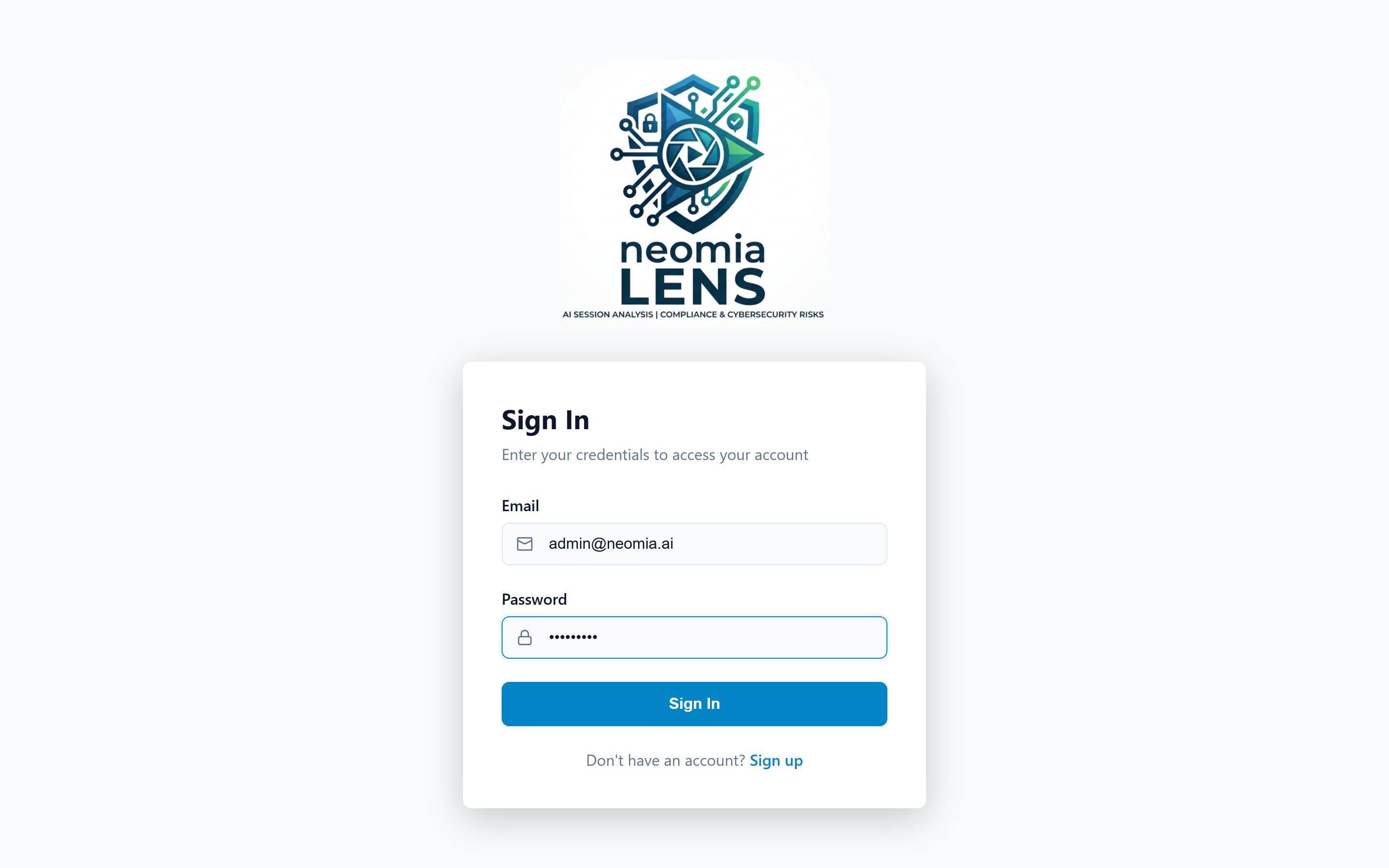
If your session is still valid from a previous visit, you will be redirected directly to the Dashboard.
Forgot your password?
Use the password recovery link on the login page, or contact your organization administrator.
2. Creating an account
If you do not yet have an account and your organization allows self-registration:
- From the login page, click Register.
- Fill in your email and choose a password (minimum 8 characters).
- Confirm the password and submit the form.
Once registration succeeds, you are automatically signed in and taken to the Dashboard.
3. The Dashboard
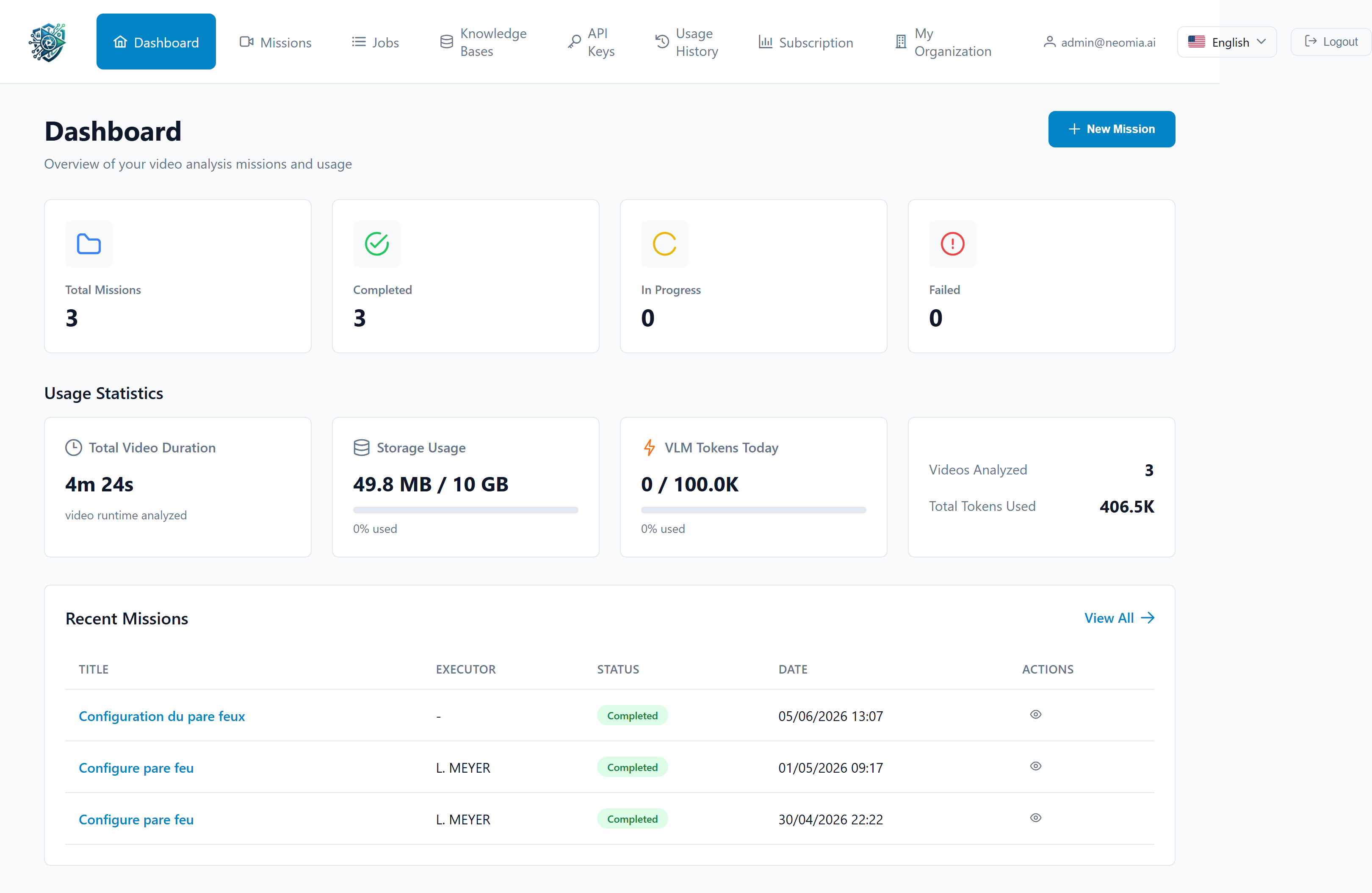
After signing in, the Dashboard gives you an at-a-glance overview of your activity. It is divided into three main areas:
Mission statistics
Four cards summarize the state of your missions:
| Card | What it shows |
|---|---|
| Total Missions | All missions you (or your organization) have created. |
| Completed | Missions whose analysis has finished successfully. |
| In Progress | Missions still being uploaded, processed, or analyzed. |
| Failed | Missions that could not be completed. |
Usage statistics
The Usage section shows how much of your subscription you are consuming today and overall:
- Total video duration — cumulative length of all analyzed videos.
- Storage usage — how much of your storage quota is currently used. A progress bar turns orange above 80% and red above 95%.
- Tokens today — AI tokens consumed today against your daily limit.
- Videos analyzed and Total tokens used — lifetime counters.
Recent missions
The bottom of the Dashboard lists your five most recent missions with their title, executor, status, and creation date. Click any row to open the mission, or use View all to go to the full list.
If you have not created any mission yet, an empty-state message invites you to start your first one.
4. The navigation bar
The top navigation bar is available from every page and contains the following entries:
| Icon | Section | Purpose |
|---|---|---|
| Home | Dashboard | The overview described above. |
| Video | Missions | Browse, create, and manage missions. |
| List | Jobs | Lower-level view of background processing jobs. |
| Database | Knowledge Bases | Manage reference documents and web sources. |
| Key | API Keys | Generate API keys for programmatic access. |
| History | Usage History | Detailed history of your consumption. |
| Chart | Subscription | View your current plan and usage limits. |
| Building | My Organization | Organization-level information. |
On the right side of the navigation bar you will also find:
- Your user email (click it to open your Profile).
- A language selector — neomia Lens supports multiple interface languages, including English and French.
- A Logout button.
5. Creating your first mission
From the Dashboard, click the orange + New Mission button (top right). You are taken to the mission creation form. The next section, Missions, walks through this form in detail.