Account & Organization
This section covers the pages reachable from the right side of the navigation bar — your personal profile, your organization, API keys, usage history, and subscription.
1. Profile
Click your email address on the navigation bar to open the Profile page. From there you can:
- Review your account information (email, display name, role).
- Change your password.
- Update your preferred interface language.
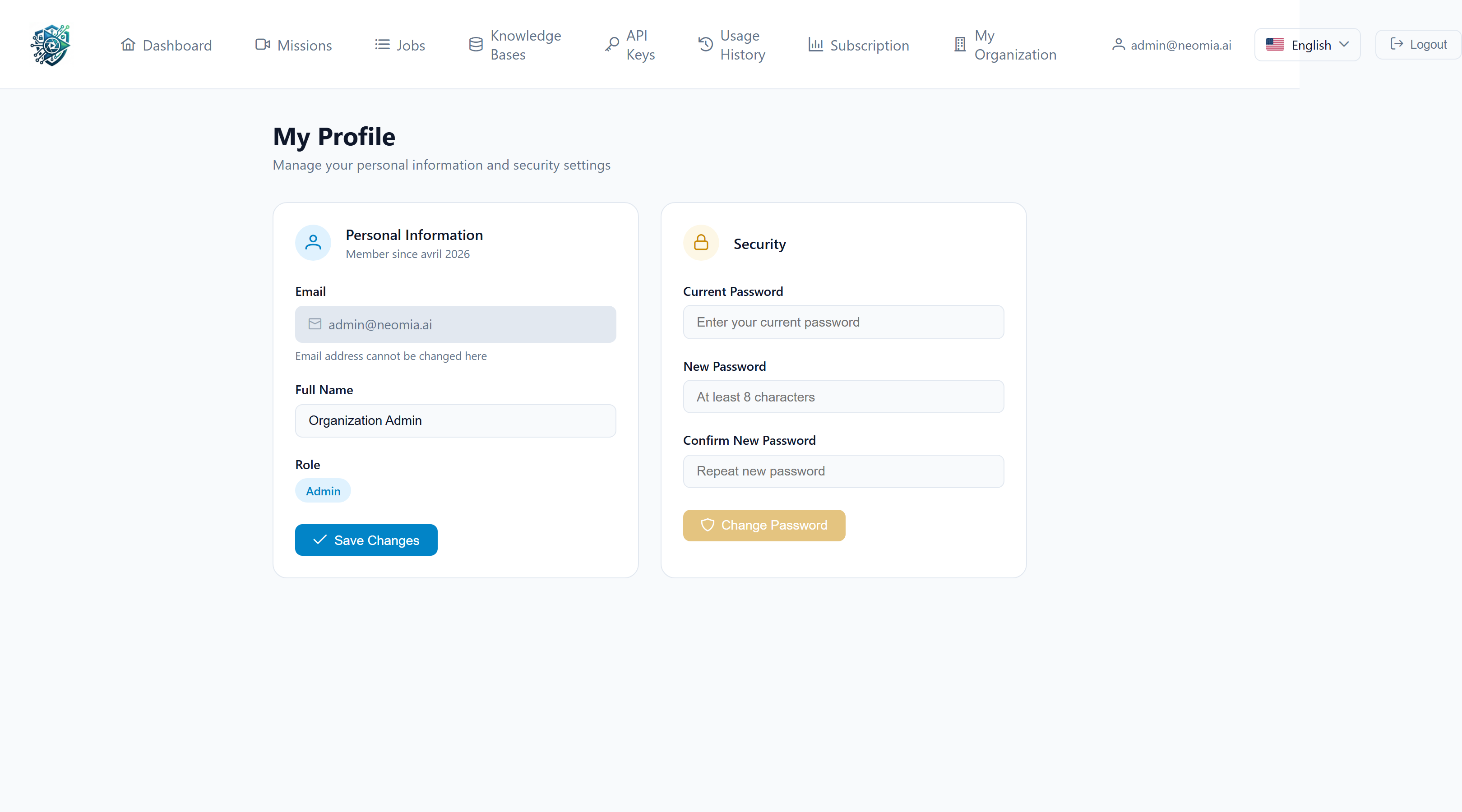
The language can also be changed on the fly from the language selector in the navigation bar.
2. My Organization
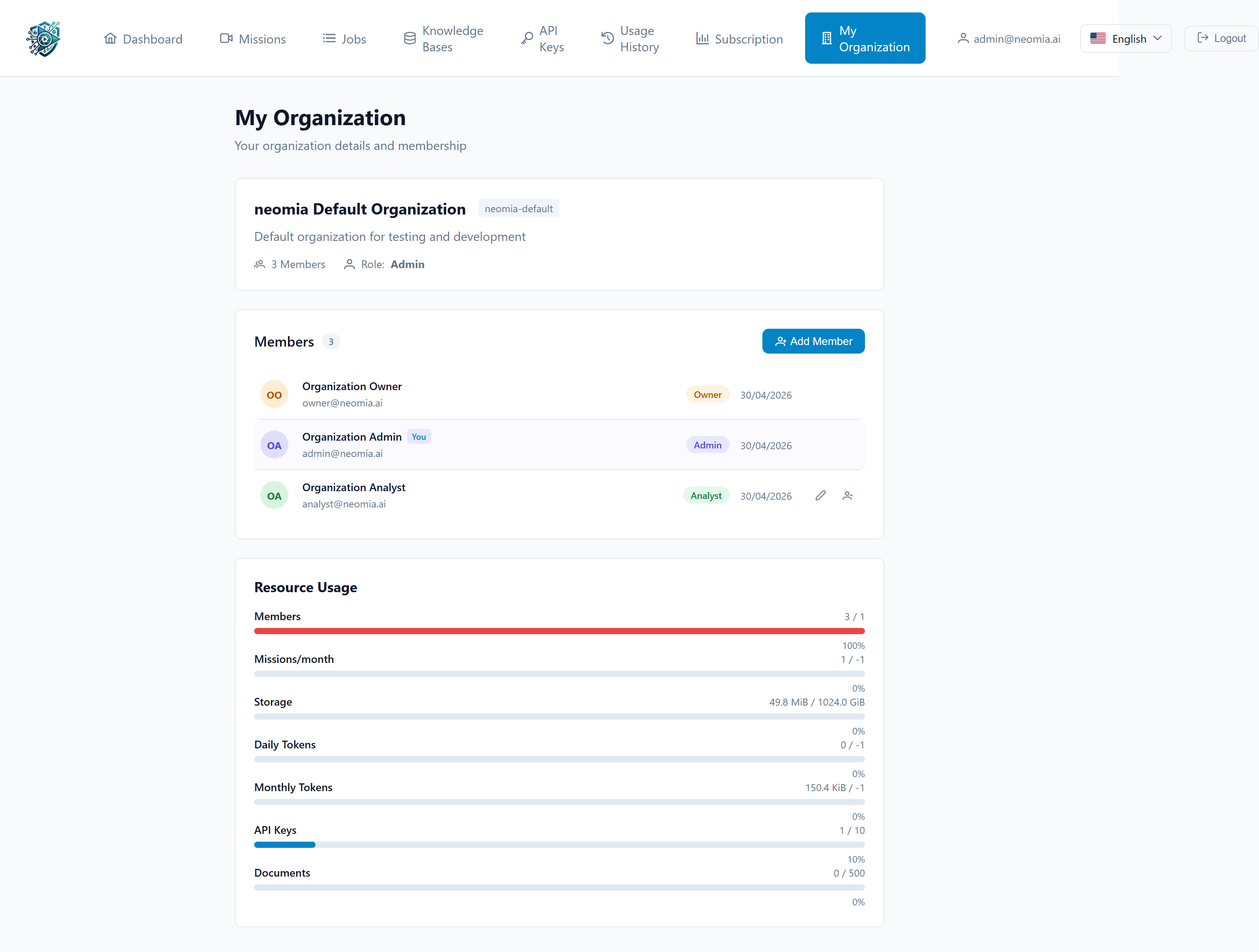
The My Organization page (building icon) shows information about the organization your account belongs to:
- Organization name and identifier.
- Members of the organization and their roles.
- Contact information and primary administrator.
End users have read-only access to this page. To make changes (add members, update billing details, etc.), contact your organization administrator.
3. API Keys
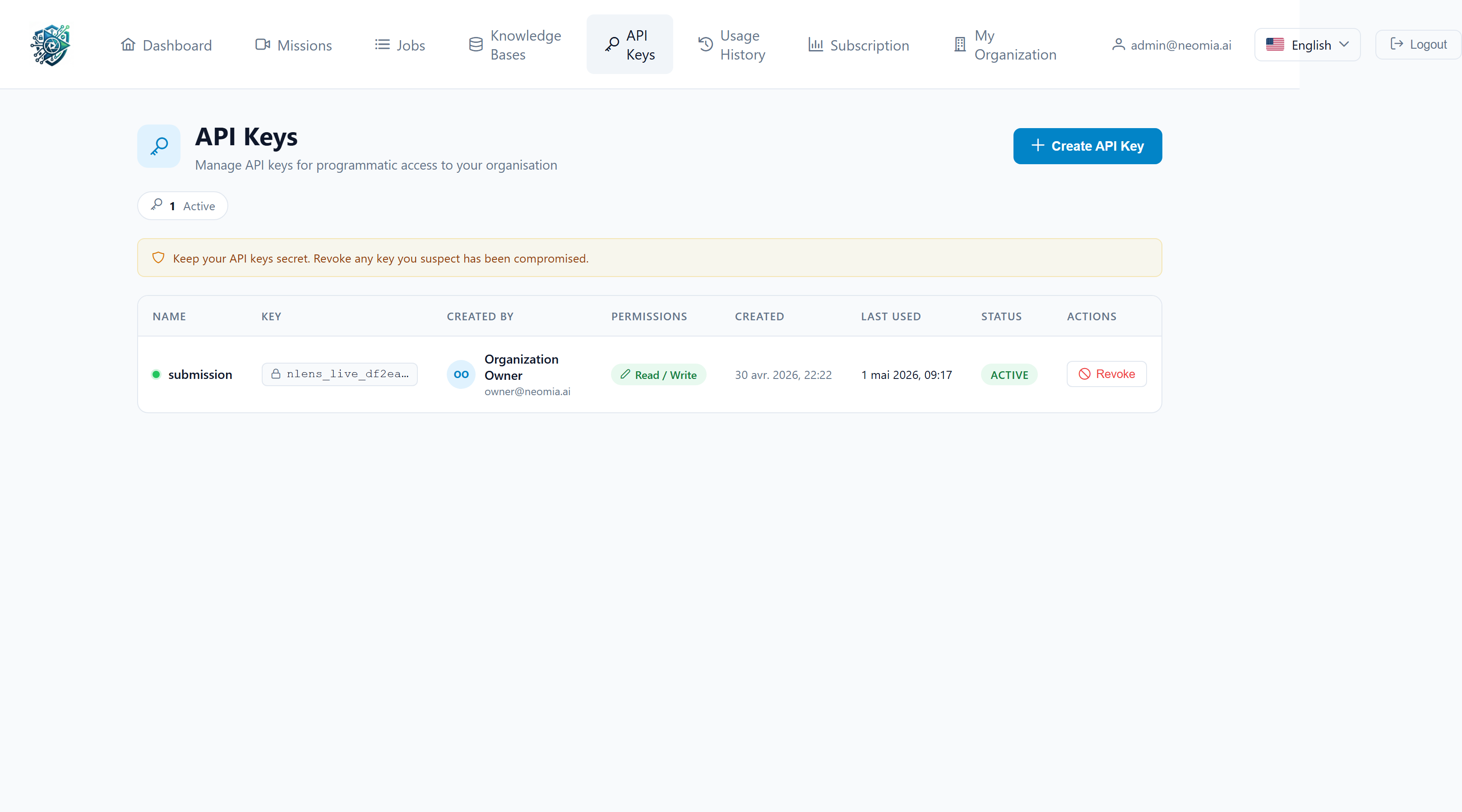
The API Keys page (key icon) lets you create credentials for programmatic access to neomia Lens — for example, to upload missions from a CI pipeline or to fetch analysis results from a script.
Generate a key
- Click New API Key.
- Provide a recognizable name (e.g. CI Upload — Production).
- Click Create.
- Copy the displayed key immediately — it is shown only once. Closing the dialog will hide the value permanently.
Revoke a key
Click the trash icon next to a key and confirm. Revocation takes effect immediately — any script or integration using that key will start receiving authentication errors.
Treat API keys like passwords
API keys grant the same permissions as your account. Never paste them in shared documents, chat messages, or public repositories. If a key is accidentally exposed, revoke it and create a new one.
4. Usage History
The Usage History page (history icon) shows a detailed log of your consumption over time:
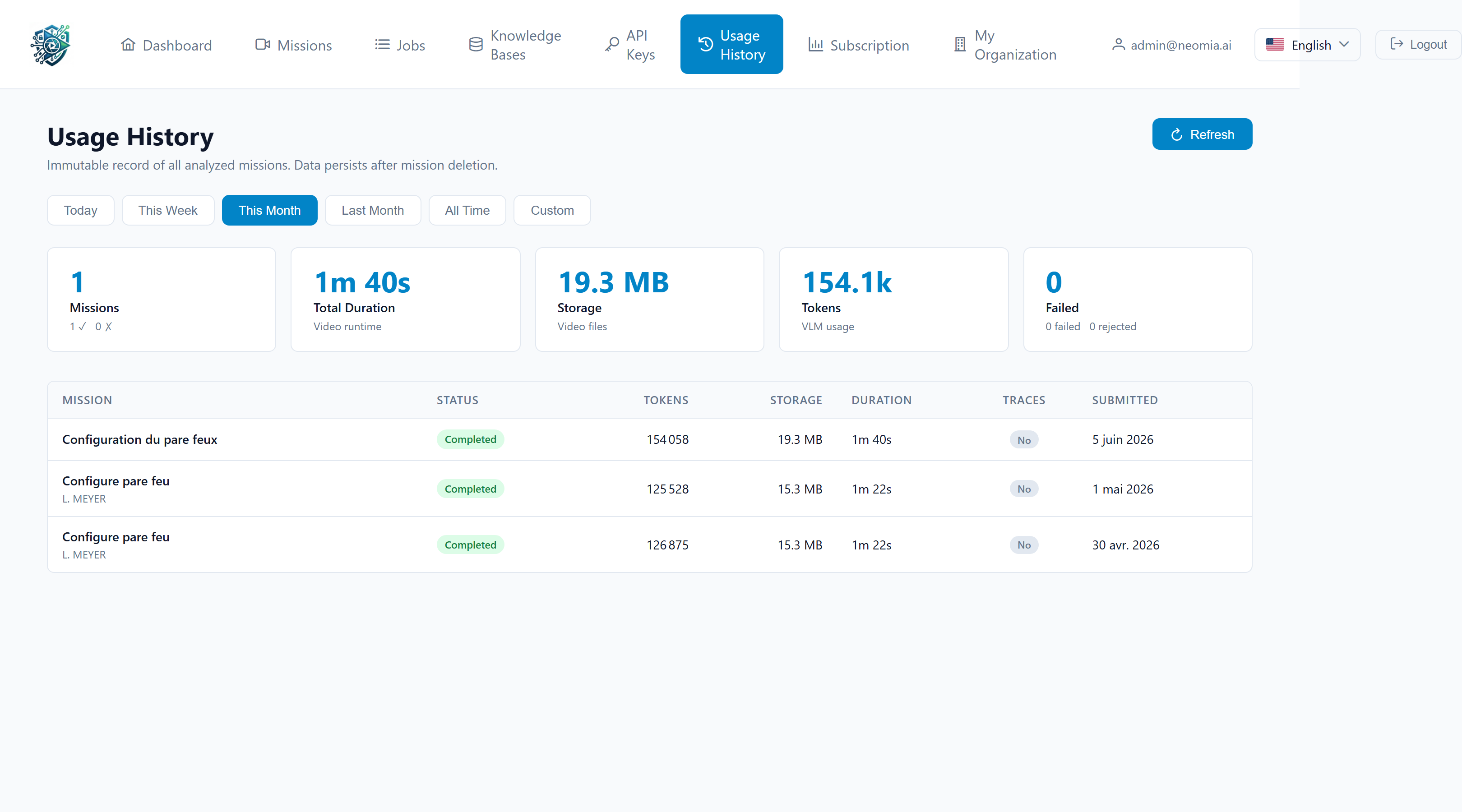
- Missions created, broken down by status.
- Total video duration analyzed per day or per month.
- AI tokens consumed.
- Storage occupied at each point in time.
You can filter the view by date range and by metric. Use this page to monitor trends, anticipate quota exhaustion, and justify subscription upgrades.
5. Subscription
The Subscription page (chart icon) summarizes your current plan and how much of its quotas you have consumed.
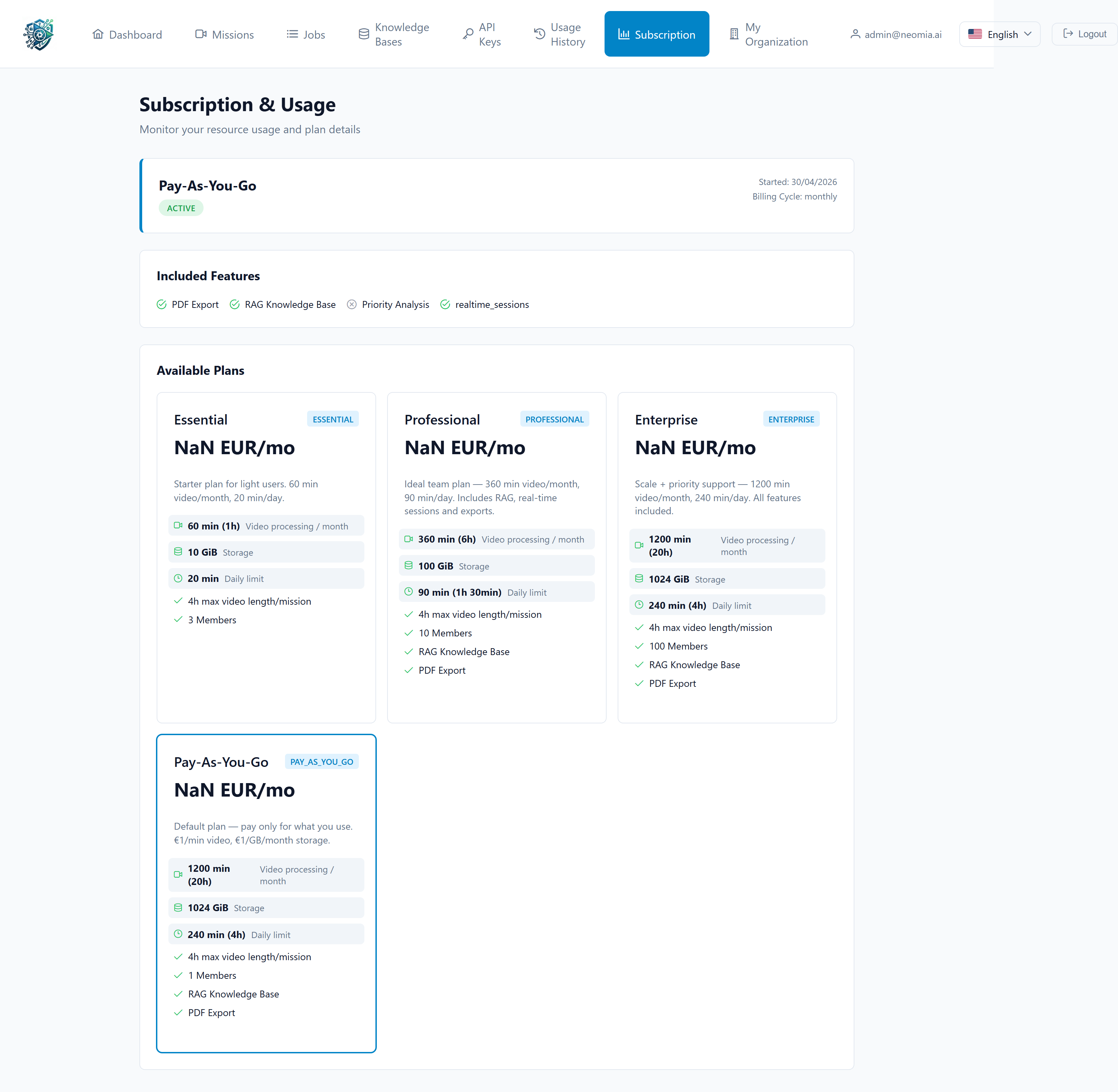
You will typically see:
- The plan name (e.g. Starter, Pro, Enterprise) and its renewal date.
- Limits for each quota — total storage, monthly video duration, daily and monthly tokens.
- Current usage with progress bars (orange above 80%, red above 95%).
End users cannot change the plan directly. If your organization needs more capacity, ask your administrator to upgrade the subscription.
6. Logging out
The Logout button is at the far right of the navigation bar. Clicking it ends your session and redirects you to the login page. Always log out when working on a shared machine.