Pulse C# Library
Foreword
Pulse C# library allows to verify identity of users using your .NET Application Windows Form.
With this library, when a user is using a GUI, you can check at any moment if the current user is the legitimate one.
Compatibility / Requirements
- This library is compatible for
.NET Framework 4.8. - You can use it with computer architecture 32/64 bit.
- Your .NET application must contain a
Forminterface and be connected to network.
Assembly used by the library
| ID | Version |
|---|---|
Microsoft.CSharp |
4.0.0.0 |
mscorlib |
4.0.0.0 |
System |
4.0.0.0 |
System.Core |
4.0.0.0 |
System.Text.Json |
6.0.0.0 |
System.Net.Http |
4.2.0.0 |
System.Memory |
4.0.1.2 |
System.Windows.Forms |
4.0.0.0 |
System.Management |
4.0.0.0 |
System.Drawing |
4.0.0.0 |
Setup library in a project
-
Download the library here
-
Open your Visual Studio Project
-
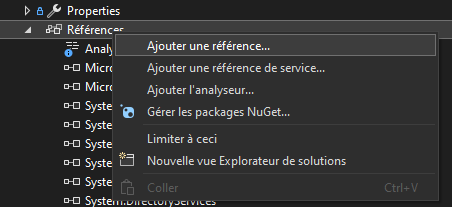
Click on Reference -> Add reference
-
Install
System.Memoryassembly used by Pulse. -
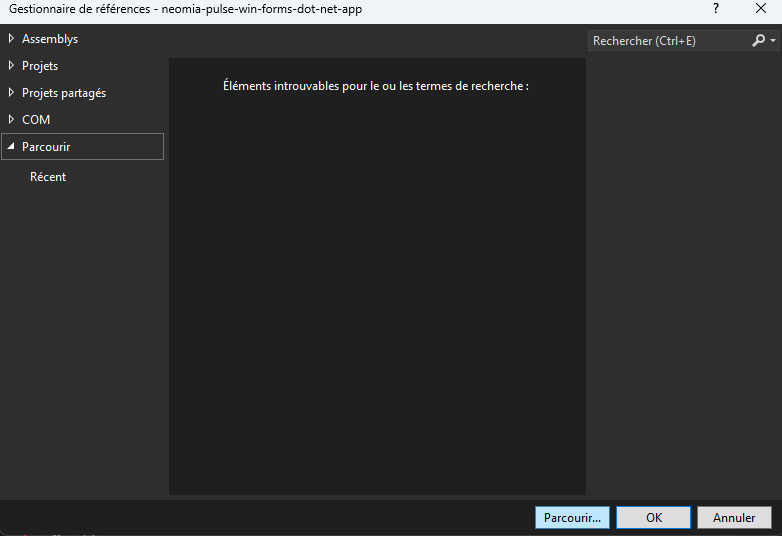
Go to Browse section and and click the Browse button
-
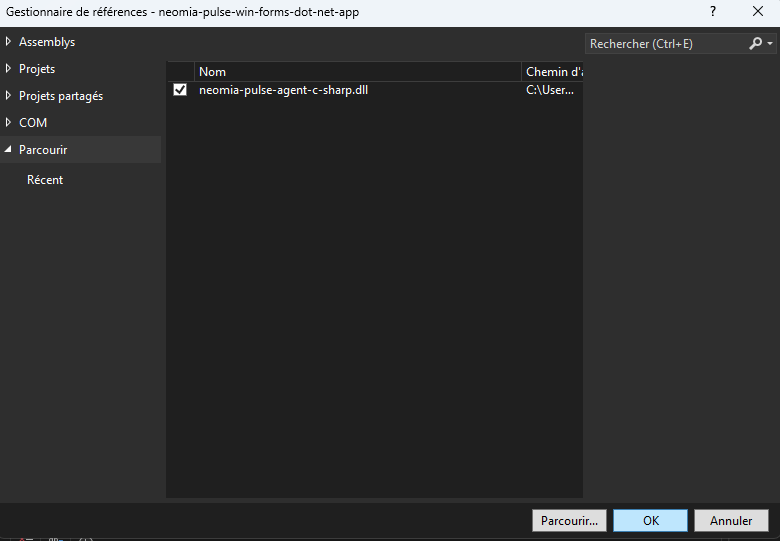
Select your pulse agent DLL
neomia-pulse-agent-c-sharp.dll -
Enable the added DLL and click OK
-
Go to your code and import the following namespace :
neomia_pulse_agent_c_sharp
How to use the library ?
Remarks
All examples are programmed in Visual Basic but you can use any other langue compatible with .net framework.
The usage of the library is similar to pulse.js.
Standards library imports
1 2 3 | |
Prepare the Pulse API connection
Connect Pulse API with your API URL and API KEY.
1 | |
Check Pulse API Status
1 2 3 4 5 6 7 8 9 10 | |
Build Pulse Patterns
When your Form is ready you can start Pulse Recorder.
1 2 | |
After recording some key events you can generate a Pulse pattern.
1 2 | |
After generating a valid pattern, please clean the recorder before building a new pattern.
1 2 | |
You can stop the recorder at any time.
1 2 | |
We recommend you to reset the recorder before closing the window.
1 2 | |
Track specifics fields
You can track specifics inputs if you add key in parameters of StartTracking and StopTracking.
Each argument must be a Control added in a Windows Form.
1 2 | |
1 2 | |
Verify the pattern of a user
As the verify procedure can take a long time, the verify pattern process is executed in a background process.
1 2 3 4 5 6 7 8 9 10 11 12 13 14 15 16 | |
The verify method takes 6 arguments :
-
userRef: the user reference. -
pattern: a Pulse pattern. -
enrollment: enrollment method (Trueif you allow user creation, otherwiseFalse). -
payload: anything, can be null. An object transferred at the second parameter of success or failed fonction. -
onSuccess: the success function with two parameters :Authenticationand your custom object. This function is called if the authentification process is successful. -
onFailure: the failed function with two parameters :PulseExceptionand your custom object. This function is called if the authentification process has failled.
Authentication object
Authentication object generated by the verify procedure containing informations returned by Pulse API.
Example :
1 2 3 4 5 6 7 8 | |
Reset Biometrics profile
To reset the biometrcis profile please use UserAction or UserActionAsync function with parameter PulseApi.Action.ResetBiometricProfil.
Example :
1 2 3 4 5 6 7 8 9 10 11 12 13 14 15 16 | |
Add pattern as reference
You can add a pattern as reference if you own a pattern ID.
Call UserAction or UserActionAsync function with PulseApi.Action.ResetBiometricProfil with action PulseApi.Action.LinkPatternId.
1 2 3 4 5 6 7 8 9 10 11 12 13 14 15 16 | |
Remove a user
You can remove a user from Pulse API with the function UserDelete or UserDeleteAsync.
Example :
1 2 3 4 5 6 7 8 9 10 11 12 13 | |
Quick Example
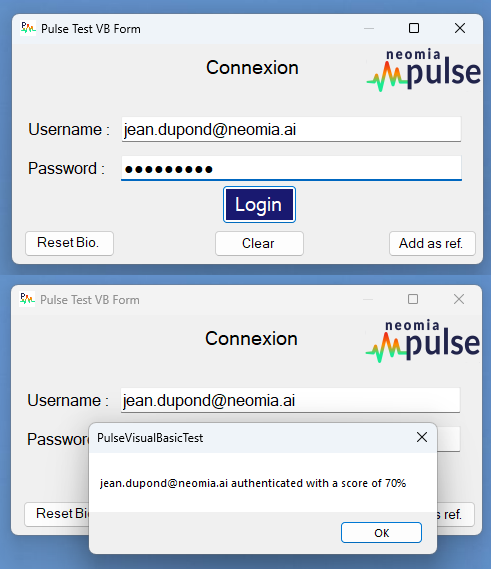
Here a simple exemple of a Pulse application in a Visual Basic Form login. You can see the sources in our Git Project