Central Authentication Service (CAS) Integration
Foreword
The neomia « Pulse CAS Plugin » allows to reinforce the authentication of a user by adding a biometric factor in addition to the factor used by default in the service Single Sign-On CAS. This page is intended for administrators of the CAS Single Sign-On service and presents the technical steps required to integrate biometric authentication into the CAS authentication service. Only the elements related to the integration of this functionality are described in this page. For a detailed description of the Signle Sign-On CAS service and its installation, it is recommended to consult the official Apereo CAS documentation.
Compatibility / Requirements
- This plugin is compatible with CAS version 6.6.4 and OpenJDK 11.
- We recommend to using CAS Overlay Template to build your CAS archetype.
- We recommend to deploy CAS in a Tomcat 9 server.
Integrate neomia Pulse in your CAS
Add Pulse plugin in CAS dependencies (./build.gradle) :
1 2 3 4 5 6 7 8 | |
Build a new CAS to generate the cas.war file. And then deploy the new archetype in your web server.
You can download your CAS plugin here.
Configuration files
Usually configurations files are saved in /etc/cas/config/ directory.
CAS Configuration (cas.properties)
Mail server
1 2 3 4 5 6 7 8 | |
Configure your attributes
1 2 3 4 5 6 7 8 9 10 11 12 | |
Configure token registery
1 2 | |
Add neomia Pulse as MFA
1 | |
Pulse Plugin Configuration (pulsecas.properties)
Create file /etc/cas/config/pulsecas.properties and put the following configuration after completing it :
1 2 3 4 5 6 7 8 9 10 11 12 13 | |
Properties (neomia Pulse Plugin)
| Property name | Description | Required |
|---|---|---|
activated |
If false, the Plugin is disabled (no behavioral analysis or token). (true or false default true) |
No |
tokenOnly |
If false, behavioral analysis is used, otherwise, only the MFA token is used. (true or false default true) |
No |
apiUrl |
neomia Pulse API URL (default https://api.neomia.ai/pulse). | Yes |
apiKey |
Your neomia Pulse API key. | Yes |
attributeUserReference |
Name of the attribute used for the neomia Pulse identifier. | Yes |
attributePrivateMail |
Name of the attribute containing the destination email address for the token. | Yes |
attributeMfaMode |
Name of the attribute for MFA usage custom mode (token, pulse, off). |
No |
tokenMailFrom |
Email address used to send OTP. | Yes |
redirectUri |
Your CAS extenal URL, used for the redirect from neomia Pulse service. | No |
How to disable the behavioral analysis ?
Comment or remove the line : pulsecas.tokenOnly=false in pulsecas.properties configuration file.
And then, restart your CAS server.
How to disable Pulse plugin ?
Comment or remove the line : pulsecas.activated=true in pulsecas.properties configuration file.
And then, restart your CAS server.
Configuration example with LDAP suppan attributes
1 2 3 4 5 6 7 8 9 10 | |
After editing the configuration, please restart your CAS server.
Services configuration files (special config cases)
When applying neomia Pulse MFA factor to CAS there are two possibilities:
-
Apply neomia Pulse MFA factor to all configured services
-
Apply neomia Pulse MFA factor only to specific services
If you want to partially apply neomia Pulse MFA plugin to some of the services, you can either:
-
(1) enable global trigger and then add bypass to services and application that can skip the MFA; or
-
(2) enable neomia Pulse MFA on specific services.
(1) Global trigger
https://apereo.github.io/cas/6.6.x/mfa/Configuring-Multifactor-Authentication-Triggers-Global.html
1 | |
Bypass per application
https://apereo.github.io/cas/6.6.x/mfa/Configuring-Multifactor-Authentication-Triggers-PerApplication.html
The bypass can be activated per Service
1 2 3 4 5 6 7 8 9 10 | |
1 2 3 4 5 6 7 8 9 10 | |
(2) Enable only on specific services
1 2 3 4 5 6 7 8 9 10 11 12 13 14 15 16 | |
Bypass, force execution and failure modes
bypassEnabled => can this service skip the MFA factor
forceExecution => force MFA factor every time
failureMode=> What is going to happen if MFA factor fails
https://apereo.github.io/cas/6.6.x/mfa/Configuring-Multifactor-Authentication-Bypass.html
https://apereo.github.io/cas/6.6.x/mfa/Configuring-Multifactor-Authentication-FailureModes.html
Starting
1 2 3 4 5 6 7 8 9 10 11 12 13 14 15 16 17 18 19 20 21 22 23 24 25 26 27 28 29 30 | |
Demonstration
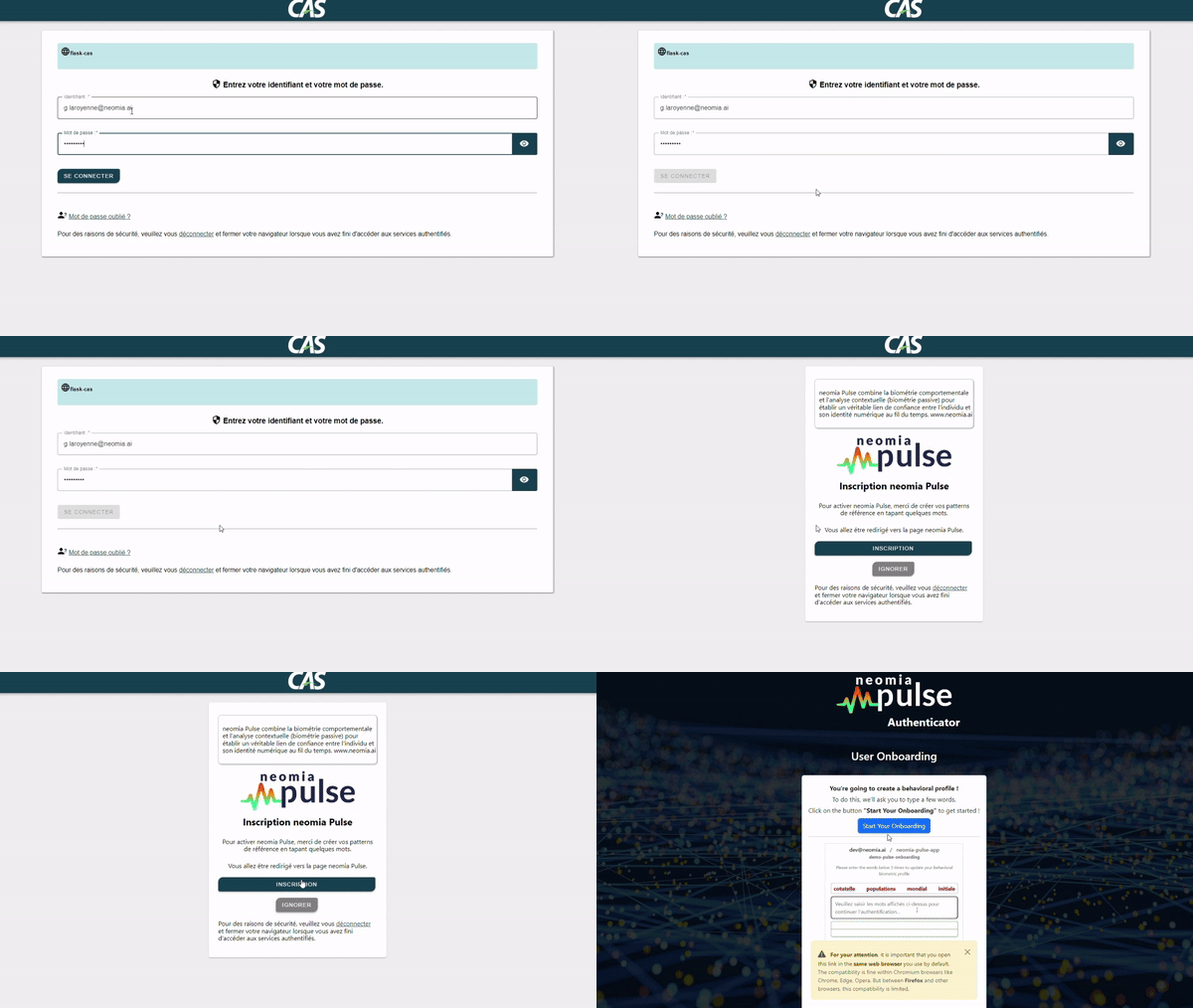
Onboarding

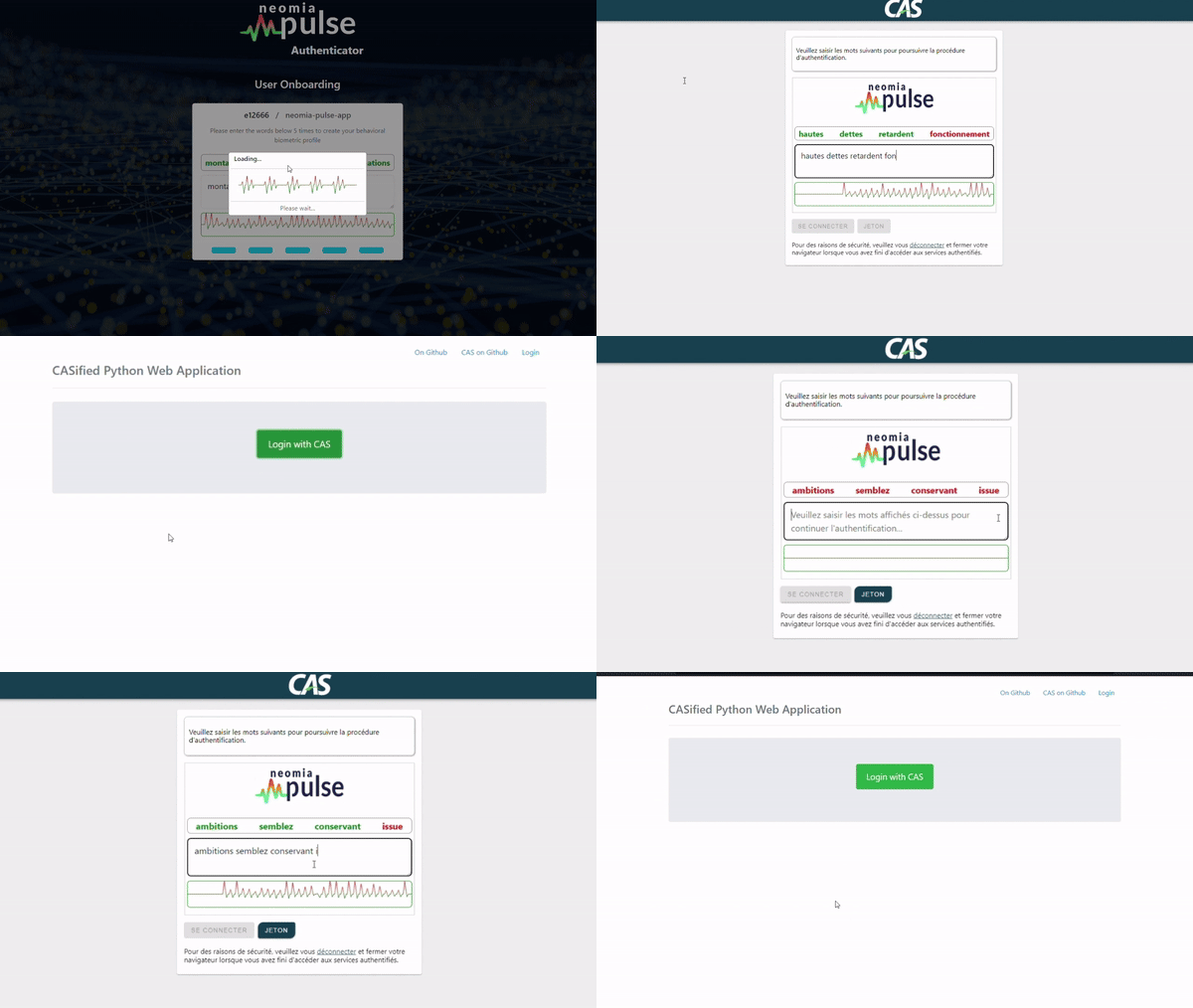
Behavioural analysis
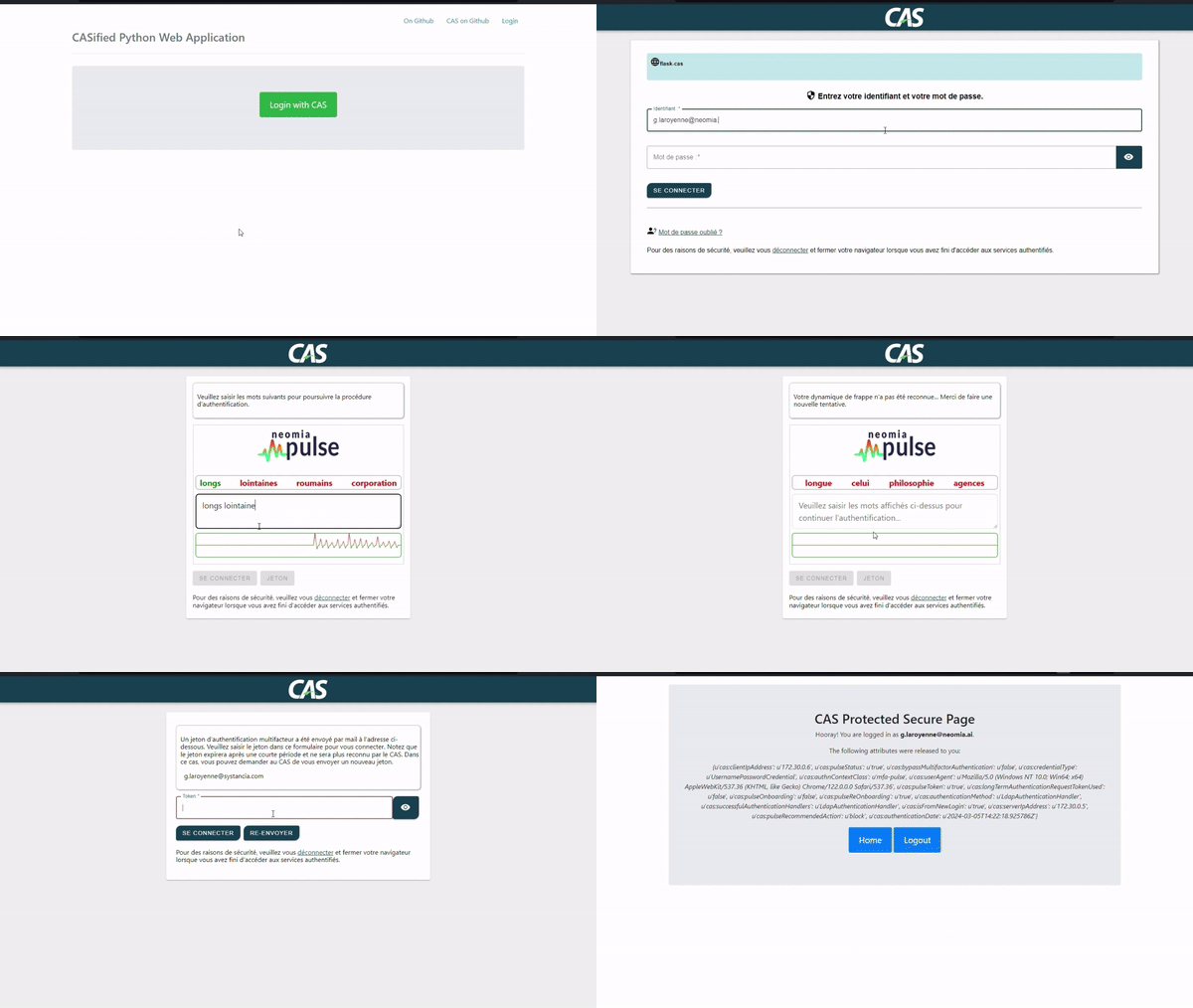
Token MFA
Working details
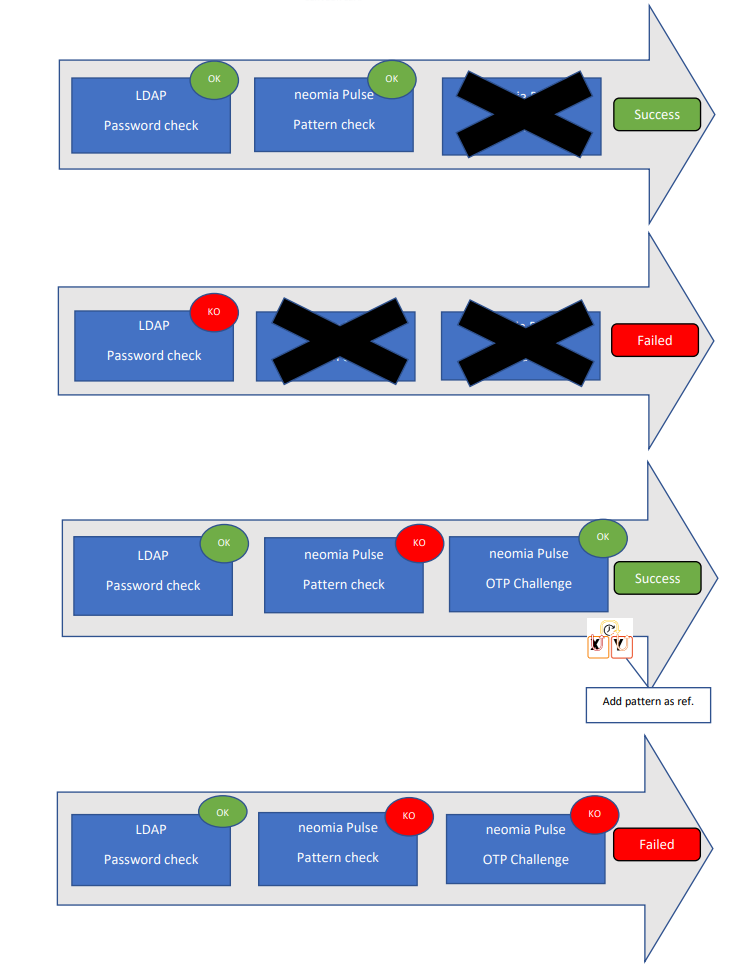
Authentication process
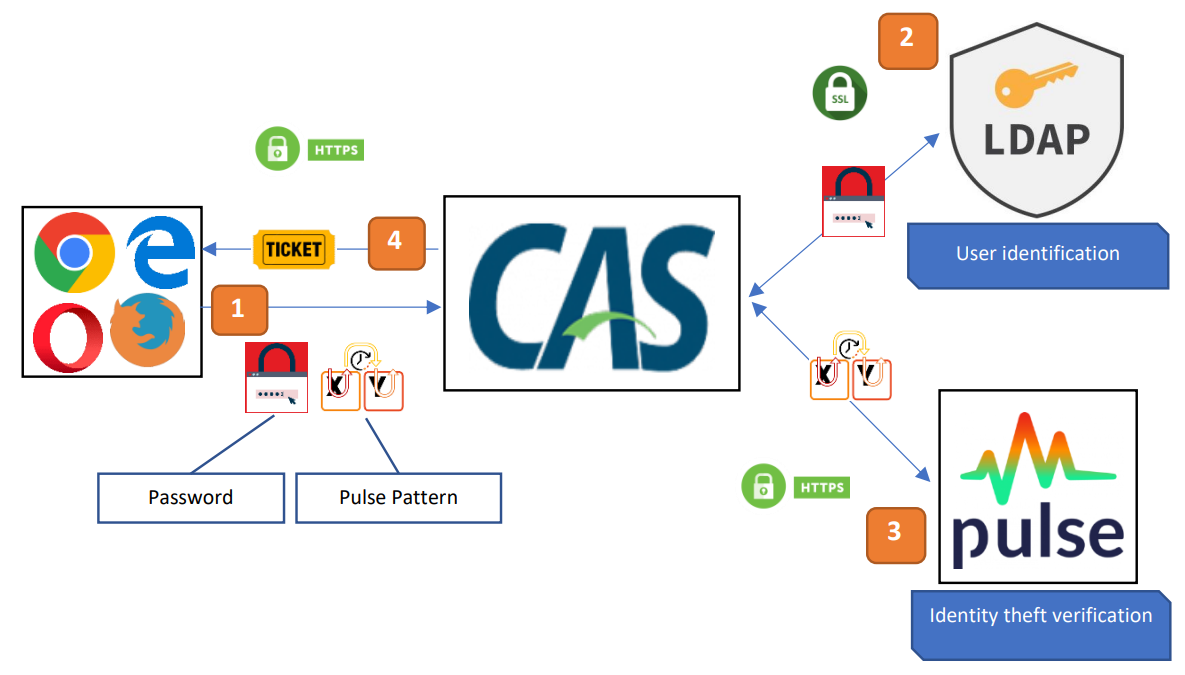
| Step | Description |
|---|---|
| 1 | The user enters the login details on the CAS login form. |
| 2 | The user is authenticated by LDAP. |
| 3 | The identity of the user is confirmed by neomia Pulse. |
| 4 | The user receives a ticket allowing him to access his applications. |
Pulse CAS Handler
Pulse plugin add a new handler MFA in CAS server.
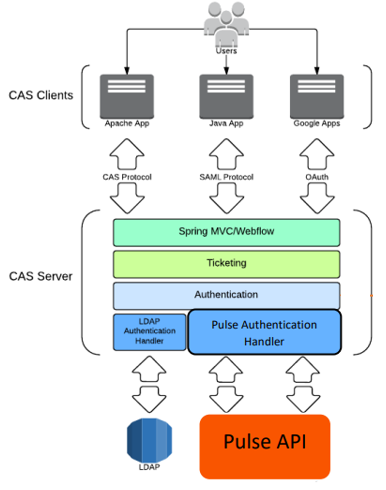
Pulse CAS Policy
Pulse plugin uses a short circuit authentication policy. If LDAP handler faileds, the authentication is automatically failed and Pulse has no effect.