Configuration
Introduction
The Configuration section of the neomia Pulse Dashboard allows the administrator to configure the behavior of neomia Pulse for the organization.
The main pages of this section are:
- Authentication Policies — how Pulse weighs indicators and what outcome each score produces.
- Typing Words — the word lists of the sign-in widget and its display language.
- MFA Clients & Links — OIDC / Microsoft Entra (EAM) relying parties and enrollment links.
- Notifications & Alerts — alert events and delivery channels.
- Logs — CSV data exports.
Configuration pages are editable by admins and owners; analysts see them read-only.
Authentication Policies
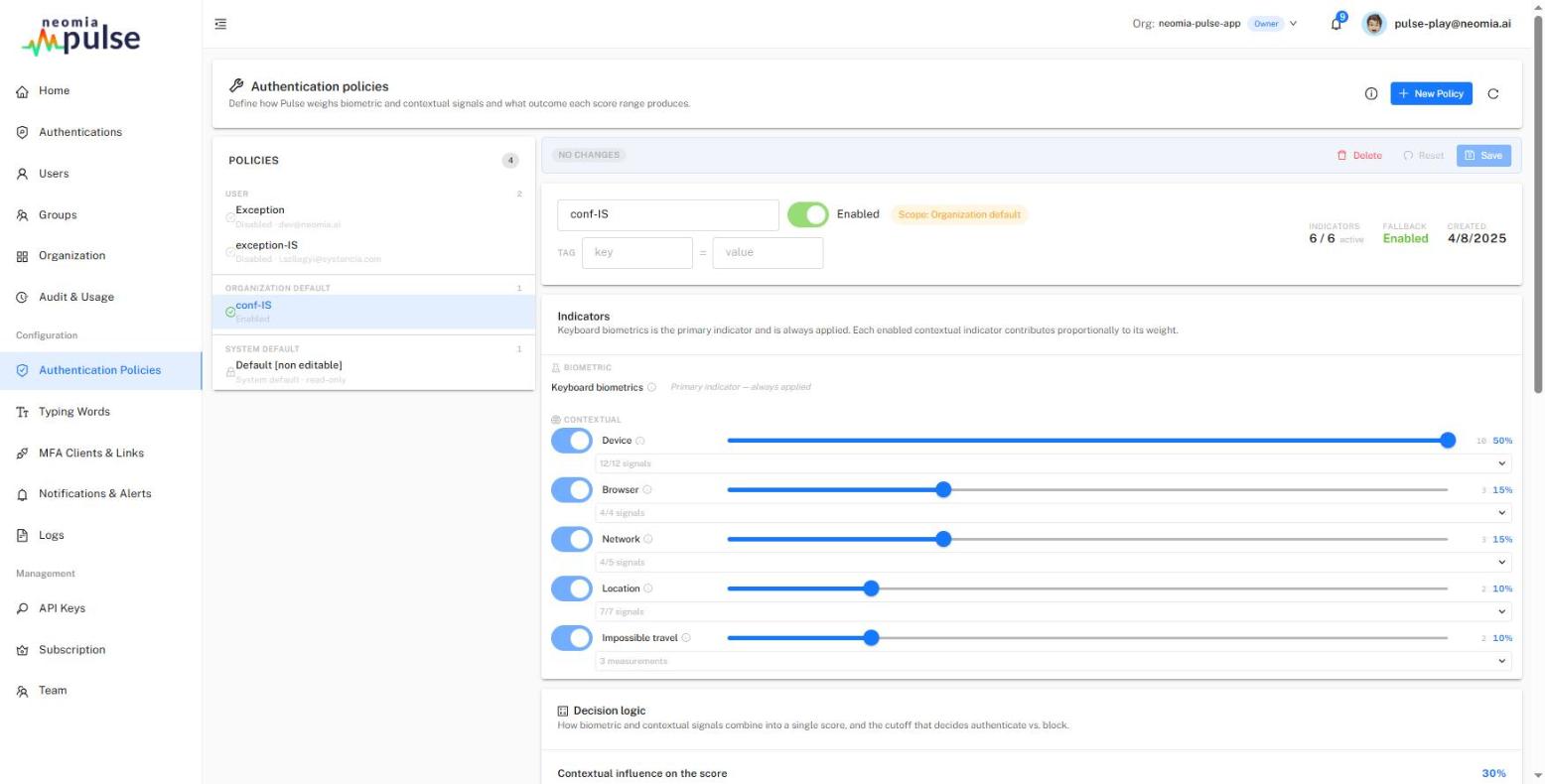
Authentication policies define how Pulse weighs biometric and contextual signals and what outcome each score range produces. The page shows the policy list on the left — including the read-only system default — and the policy editor on the right.
How policies are picked
A policy applies to a scope, determined by its tag. When a user authenticates, the most specific matching policy wins, in this order:
- user (tag
user:<email>), - group (tag
group:<name>), - application (tag
application:<id>), - organization (policy without a tag),
- system default.
Within a tier, the higher Priority wins; ties break by creation date (older first).
Indicators and weights
The main indicator is Keyboard biometrics — it is the primary indicator and is always applied (it cannot be disabled or weighted).
The contextual indicators — Device, Browser, Network, Location, Impossible travel — can each be enabled or disabled and given a weight (0–10). Each enabled contextual indicator contributes proportionally to its weight: the editor shows the resulting share of the contextual score for each.
Per-indicator signals can be tuned individually (enable/disable, weight) for fingerprint-style indicators. Impossible travel is a measurement indicator: its signals (distance, time between logins, implied travel speed) are fixed — above 1,000 km/h the login scores 0.
Indicators disabled platform-wide
An indicator can be switched off globally by the platform operator. It then appears greyed out with a disabled platform-wide chip: it never contributes to any score, but your settings are kept and apply again if it is re-enabled.
Decision logic
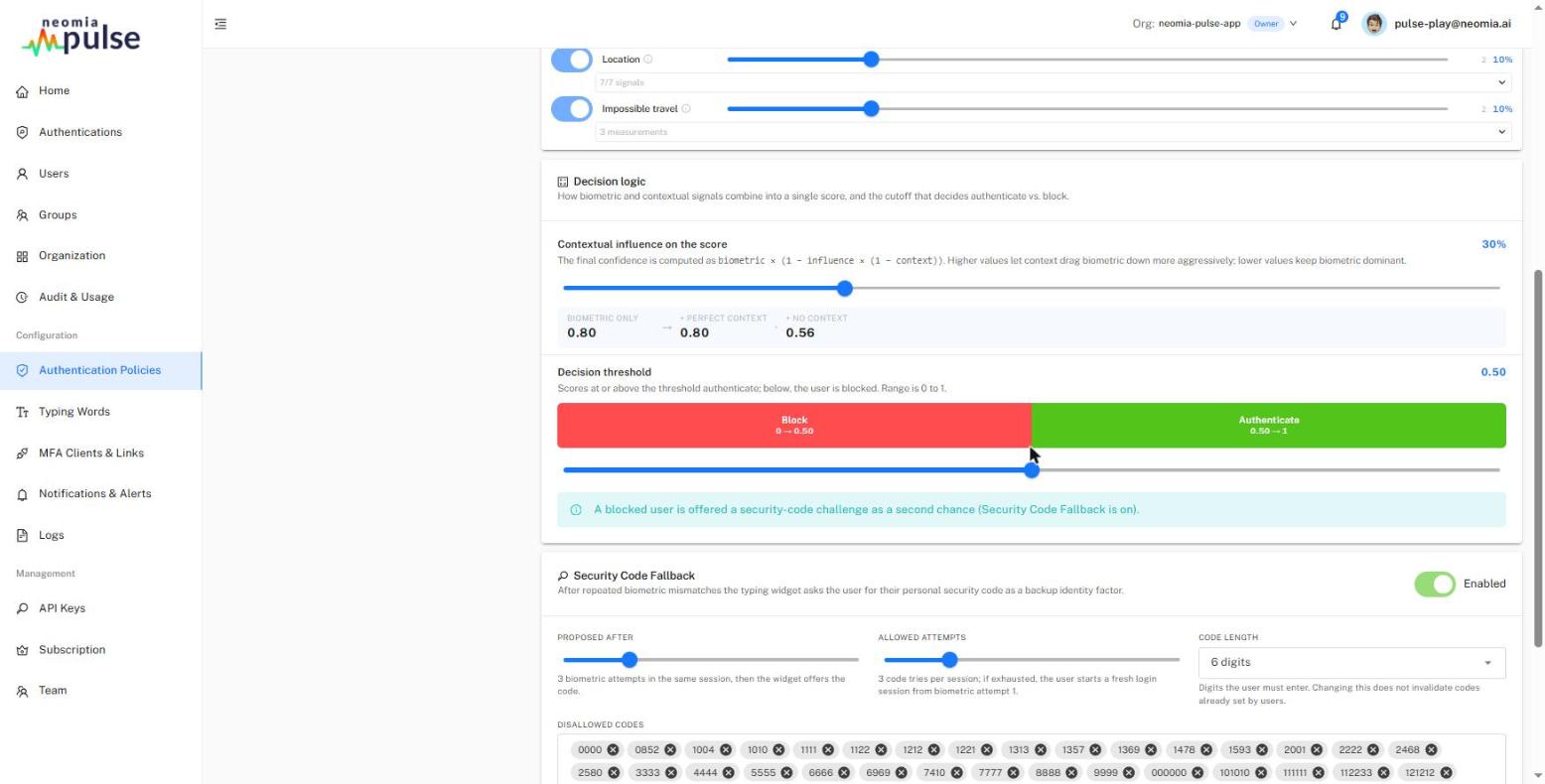
Two controls determine the outcome:
- Contextual influence on the score (0–1): the final score is computed as
biometric × (1 − influence × (1 − context)). At 0, context is ignored; at 1, a bad context can fully veto a good biometric score. A failing biometric score is never rescued by a good context. - Decision threshold (0–1): scores below the threshold are blocked, scores at or above it are authenticated. Whether a blocked user gets a second chance depends on the security-code fallback below.
Security Code Fallback
When enabled, a user whose biometric attempts fail can complete the authentication with their security code (a per-user/per-member PIN, managed on the Users page):
- Proposed after — the number of failed biometric attempts before the code is proposed;
- Allowed attempts — the number of code tries per session;
- Code length — 4, 6, 8 or 10 digits (default 6);
- a configurable blocklist of weak/common codes that users are not allowed to choose.
A successful code fallback is reported as a Fallback outcome (not a clean biometric pass) in all dashboards.
Typing Words
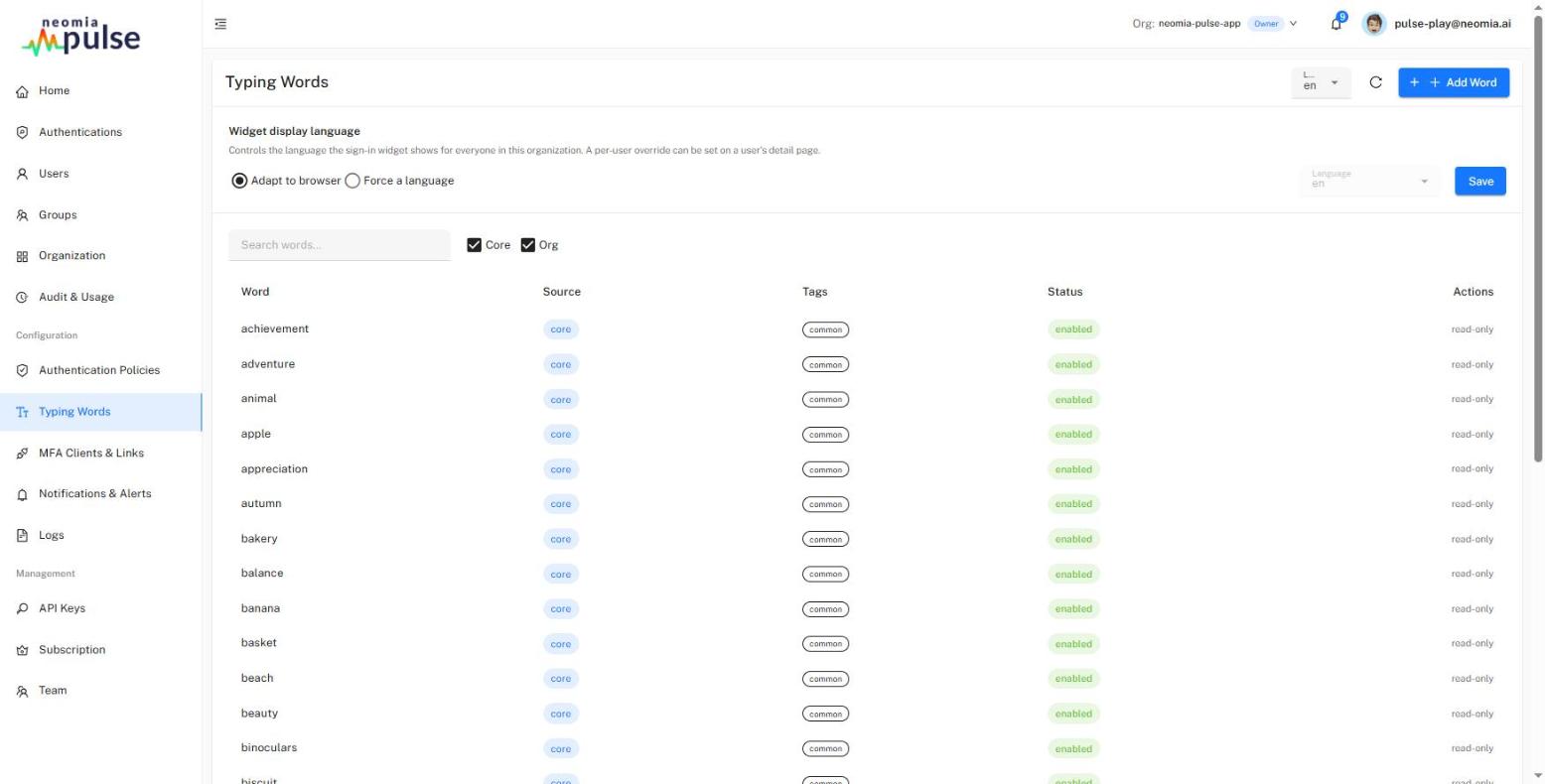
This page manages the words the sign-in widget asks users to type.
Widget display language controls the language the widget shows for everyone in the organization: Adapt to browser or Force a language. A per-user override can be set on a user's detail page (Users → member actions). The available languages are those for which typing words exist.
The word table lists the words with their language, tags and scope: core words are provided by the platform (they can be disabled but not edited or deleted); org words are your own — they can be created, edited, disabled and deleted. A word carries a language (ISO-639-1, e.g. en, fr) and free-form tags.
MFA Clients & Links
This page configures how the organization uses typing-based MFA. MFA must first be set up for the organization (one-time action).
Enrollment links — when enabled, administrators can generate links to enroll, reset or update a user's typing profile (used from the Users page).
MFA Clients — when enabled, OIDC and Microsoft Entra (EAM) relying parties can be registered (up to 5 clients). The discovery URL to configure in the relying party is shown with copy/open shortcuts. An auto-enrollment default controls whether unknown users are enrolled on first connection (each client can inherit or override it).
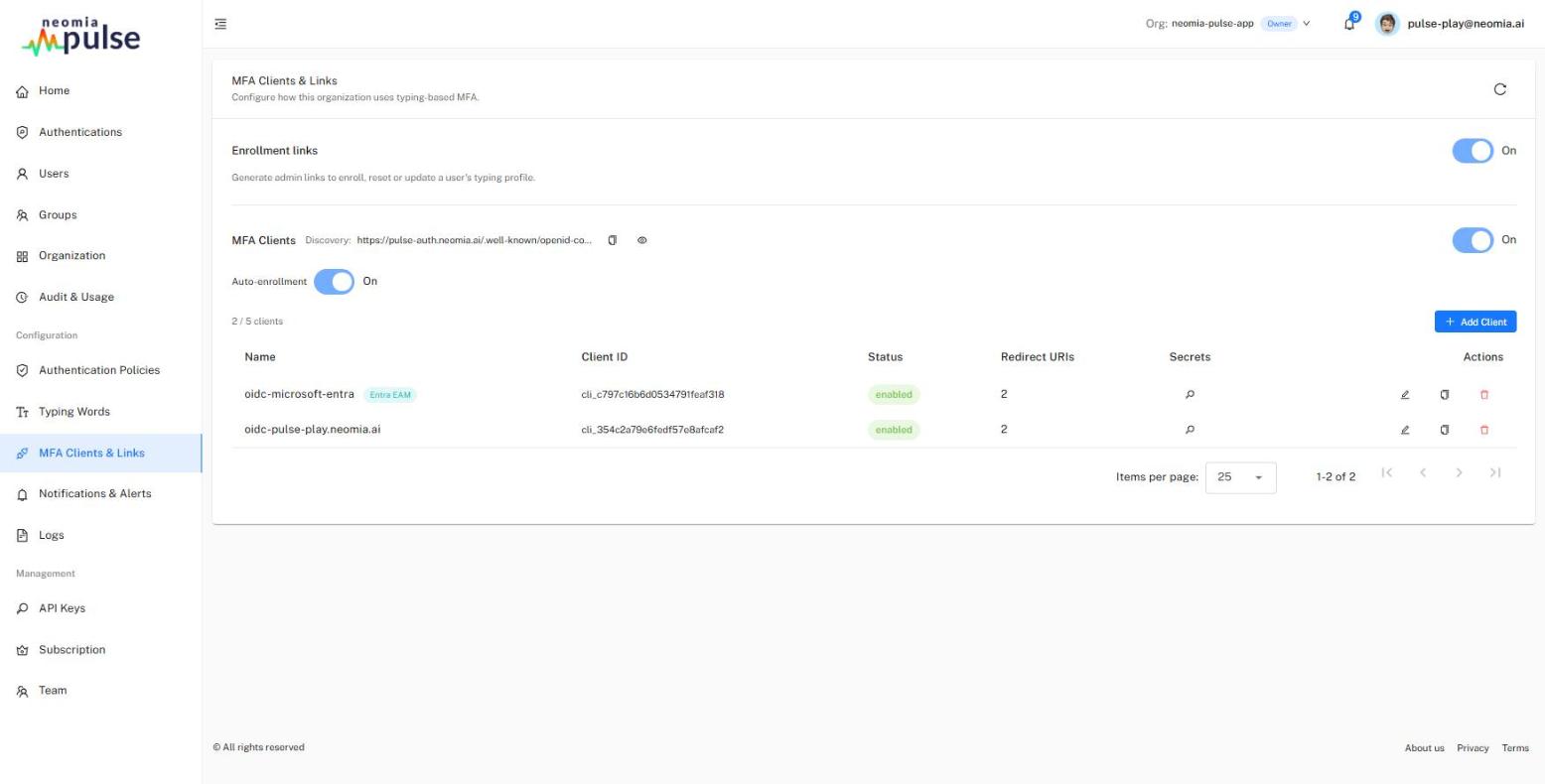
Client configuration
Each client has a type — Standard OIDC or Microsoft Entra (EAM) — chosen at creation (it cannot be changed afterwards), a name, an enabled switch and its redirect configuration (authorized redirect URIs, post-logout redirect URIs, authorized origins).
For standard OIDC clients: allowed scopes (openid, email, profile), grant types, token-endpoint auth method, optional audience and the amr values emitted in the id_token (RFC 8176).
For Microsoft Entra (EAM) clients:
- Azure App ID — the expected audience of the inbound
id_token_hint; - Allowed Entra tenant IDs — only these tenants may use the client (leaving it empty accepts any tenant, which is not recommended);
- the
acrasserted to Entra and theamrtyping-factor label (Entra'samrenum has no keystroke value;fptis the type-correct default); - Show a display name on the dashboard — populates the user's dashboard display name from a chosen id_token claim (
preferred_username,email,upn,name, …). The identity key is always the immutableoid; the display name is display-only. Turning the switch off clears the stored display names. -
Allow security-code fallback (assert as amr=otp) — when biometrics fail, the user can complete MFA with their security code and Pulse asserts
amr=otp(possession) to Entra.Security trade-off
The security code is a knowledge factor — reporting it as possession lets it satisfy Entra's MFA requirement but weakens the type-diversity guarantee. Enable it only if you accept that trade-off. Left off, a security-code attempt bounces back to Entra.
Client secrets
A client secret is shown once at creation — copy it immediately. The Secrets dialog supports rotation without downtime: add a new secret (all enabled secrets are accepted at the same time), update the application that uses the client, then revoke the old secret. The last enabled secret of a client cannot be revoked.
An Azure AD connector export is available per client to ease the Entra-side configuration.
Notifications & Alerts
Choose which events raise alerts and how they are delivered.
Alert events — a matrix of events × channels (Notification, Email, SMS):
- Service is down,
- New user account created,
- Authentication rejection rate > 10%,
- Impossible travel detected.
Delivery channels:
- Email — SMTP service, port, credentials and the recipient list;
- SMS — gateway endpoint and credentials, sender name and the phone-number list;
- Syslog forwarding — host, port and protocol, for forwarding to a SIEM.
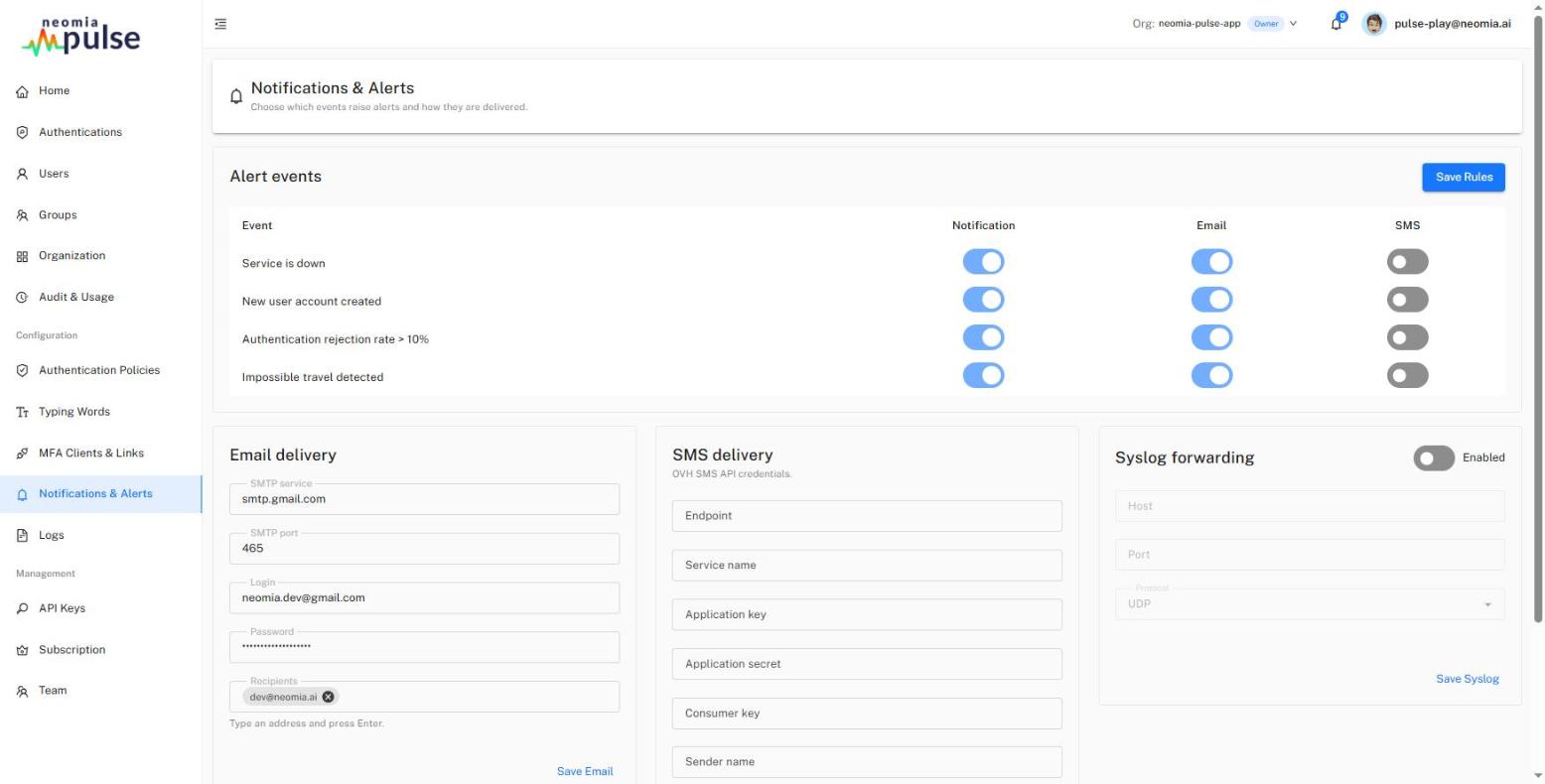
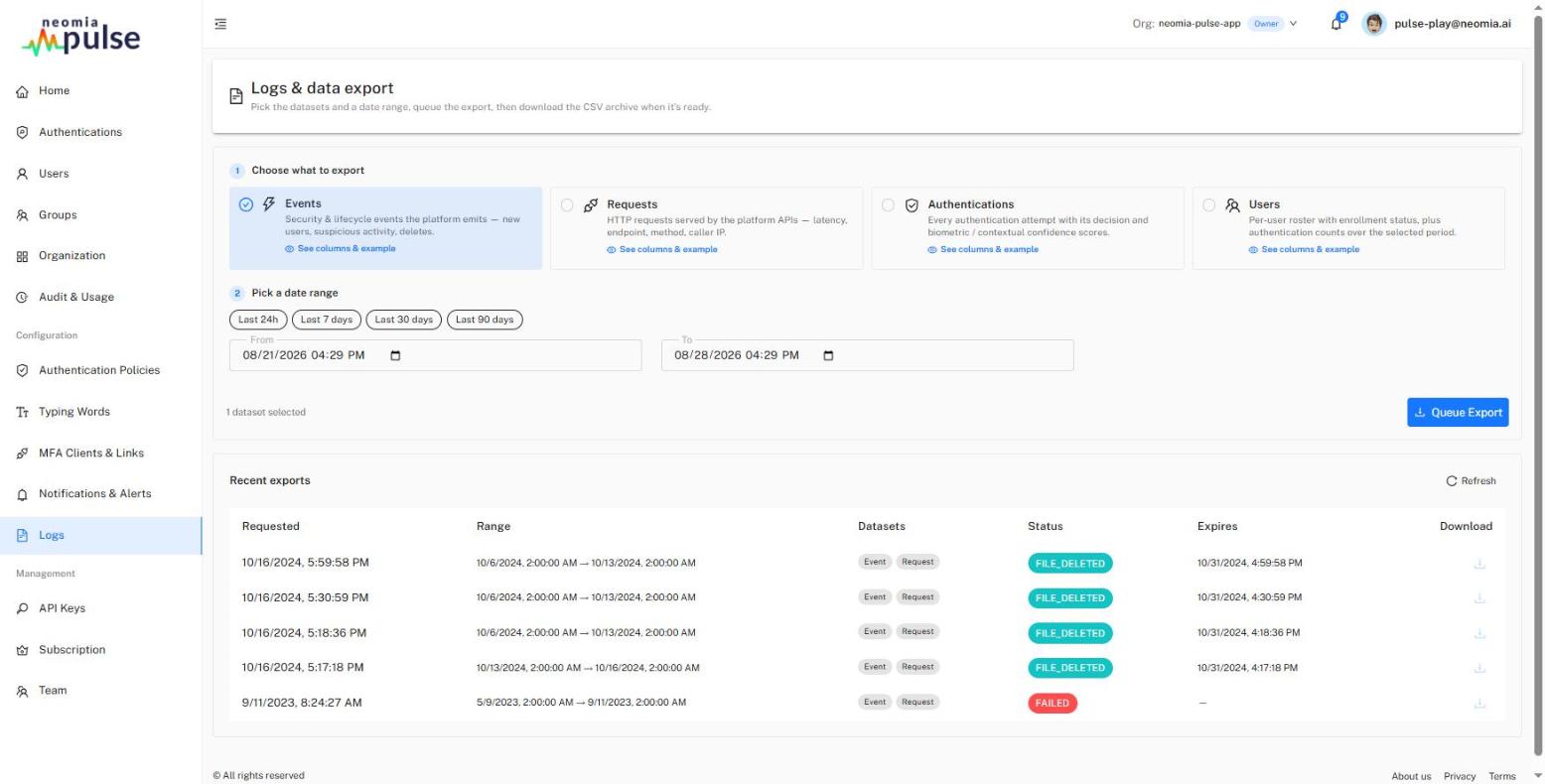
Logs & Data Export
This page exports the organization's data as CSV archives:
-
Choose what to export — one or more datasets:
- Events — security and lifecycle events (new users, suspicious activity, deletions);
- Requests — HTTP requests served by the platform APIs (latency, endpoint, method, caller IP);
- Authentications — every authentication attempt with its decision and biometric/contextual confidence scores;
- Users — the per-user roster with enrollment status and authentication counts over the selected period.
Each dataset card documents its exact CSV columns with an example row.
-
Pick a date range — presets (last 24h / 7 / 30 / 90 days) or a custom range.
- Queue the export — extraction runs asynchronously; the Recent exports table tracks each export's status and, once ready, provides the ZIP download. Archives have a limited lifetime, shown in the table.