Analysis Results
Once a mission reaches the Completed (or Partial) status, opening it shows the full AI analysis. This page describes what you will see and how to interact with it.
1. Layout
The mission analysis view has two main panes:
- Left pane — Video player and execution log. The original video is embedded and synchronized with the timeline of detected events.
- Right pane — Mission information and AI analysis. Metadata, overall assessment, risks, compliance, and recommendations.
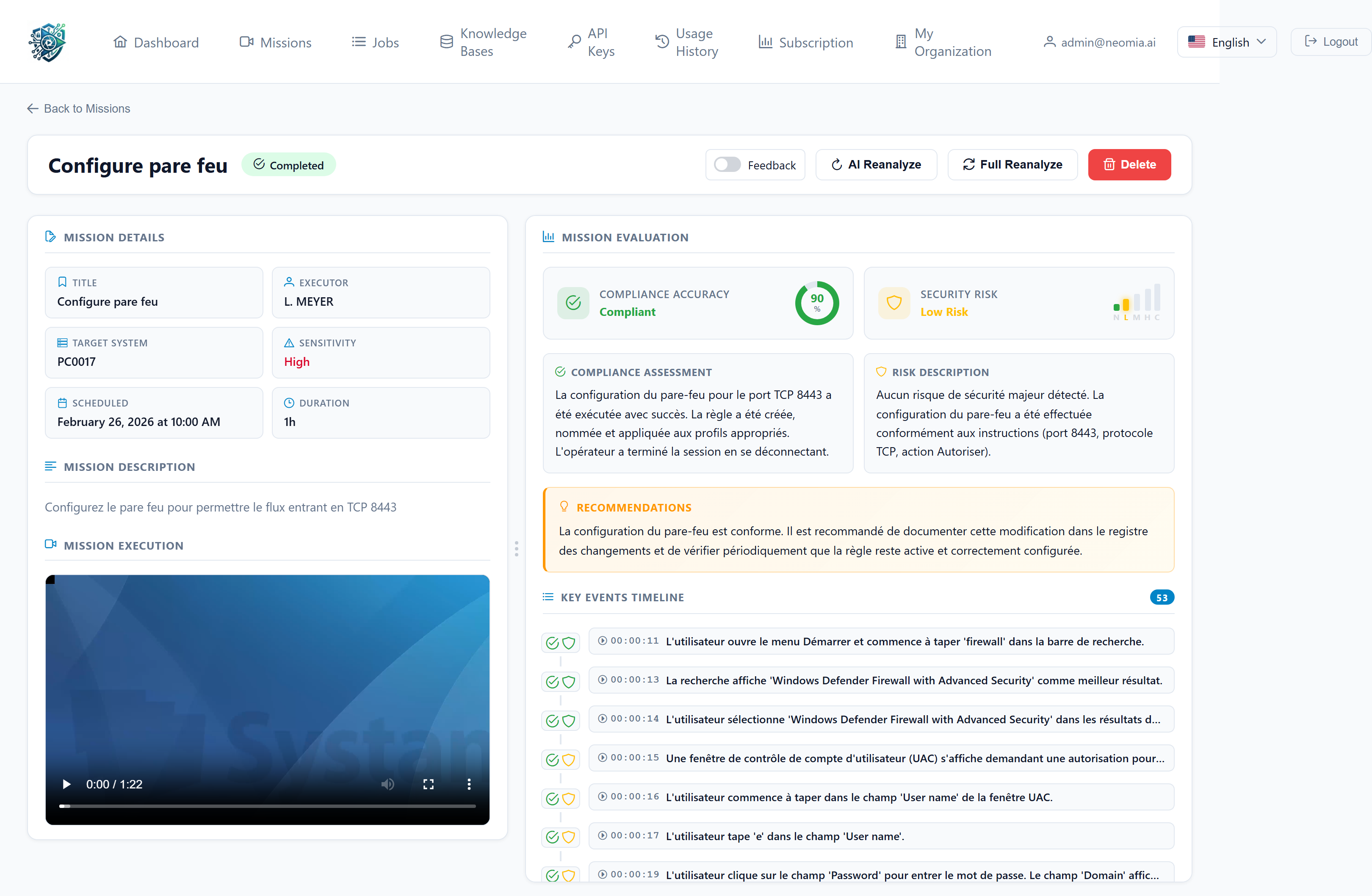
A draggable handle between the two panes lets you adjust how much horizontal space each one uses; your choice is remembered locally.
2. Mission information
The top of the right pane recalls the metadata you provided when creating the mission:
- Title, executor, target system, sensitivity, scheduled date, duration.
- Creation, upload, and completion timestamps.
- File size, video duration, frame count.
- A link to download the original video and the traces CSV (if attached).
3. Overall assessment
This section is the AI's summary of the mission. It typically includes:
- An overall risk level —
Critical,High,Medium,Low, orInfo, color-coded. - A risk description — a short narrative explaining the dominant risk factors detected during the operation.
- A compliance score with a textual evaluation, when the mission's context implies compliance requirements.
- A list of recommendations at the mission level. Click any recommendation to open it in a larger modal for easier reading.
4. Key events timeline
Below the overall assessment, neomia Lens displays the timeline of key events detected during the video.
Each event entry shows:
- A timestamp within the video.
- A short title and a description of what happened.
- A risk level badge and, where applicable, a compliance tag.
- A recommendation specific to that event, expandable inline.
Interacting with the timeline
- Click an event timestamp to jump the video player to that moment.
- As the video plays, the matching event is highlighted automatically in the log.
- Click an event description to expand a longer narrative if one is available.
- Click the recommendation toggle to read the suggested mitigation.
5. Cluster results (progressive view)
For longer videos, the analysis is delivered progressively — frame clusters are analyzed in sequence and added to the report as they become ready. While a mission is still analyzing, you may already see some clusters displayed; new ones appear as soon as the backend produces them. A counter shows how many of the expected clusters have arrived.
6. Providing feedback on the AI analysis
If feedback is enabled for the mission (header toggle, or ?feedback=true URL parameter when the view is embedded), each section of the report exposes a feedback panel.
From the panel you can:
- Mark the section as helpful or accurate when the AI got it right.
- Flag specific problems with predefined tags such as
wrong_risk_level,missed_critical_event,hallucinated,not_actionable, etc. - Provide a corrected value when the field has one (for instance, a corrected risk level).
- Add free-text comments to explain the issue.
Feedback is saved per user, per target (overall assessment, risk, compliance, recommendations, or individual events). It is used to improve future analyses and to provide quality metrics to your organization.
Why submit feedback?
Even quick "thumbs up / thumbs down" feedback materially improves the quality of subsequent analyses. If you spot a missed event or a wrong risk classification, take a few seconds to flag it.
7. Exporting the report
From the analysis view, you can export the report for archival or sharing. Supported formats include:
- JSON — full structured data, suitable for downstream automation.
- CSV — flat list of events, easy to open in a spreadsheet.
- PDF — human-readable report for inclusion in audit dossiers.
The download starts automatically once the export is generated.
8. Deleting a completed mission
The mission detail page also provides a Delete button. As on the Missions list, deletion is permanent and removes the video, traces, and AI report — make sure you have exported anything you need before confirming.